
How to Connect Exness to MT5: Login and Server Setup Guide
Learn how to connect an eligible Exness trading account to MT5 on desktop or mobile. Find your MT5 login and server, follow the setup steps, and troubleshoot common connection errors.
How to Connect Exness to MT5: Login and Server Setup Guide
To connect Exness to MT5, you need an MT5 trading account, its login number, the trading password, and the correct trading server.
You do not connect by entering your Exness email address into MetaTrader 5. Instead, you sign in using the details assigned to a specific trading account.
This guide explains where to find those details, how to enter them on desktop and mobile, and what to check when the connection fails.
This guide is for eligible users with an existing Exness MT5 account. Exness does not offer services to U.S. citizens or residents. Check the official country restrictions before attempting registration.
1. Find Your Exness MT5 Login Number, Password, and Server
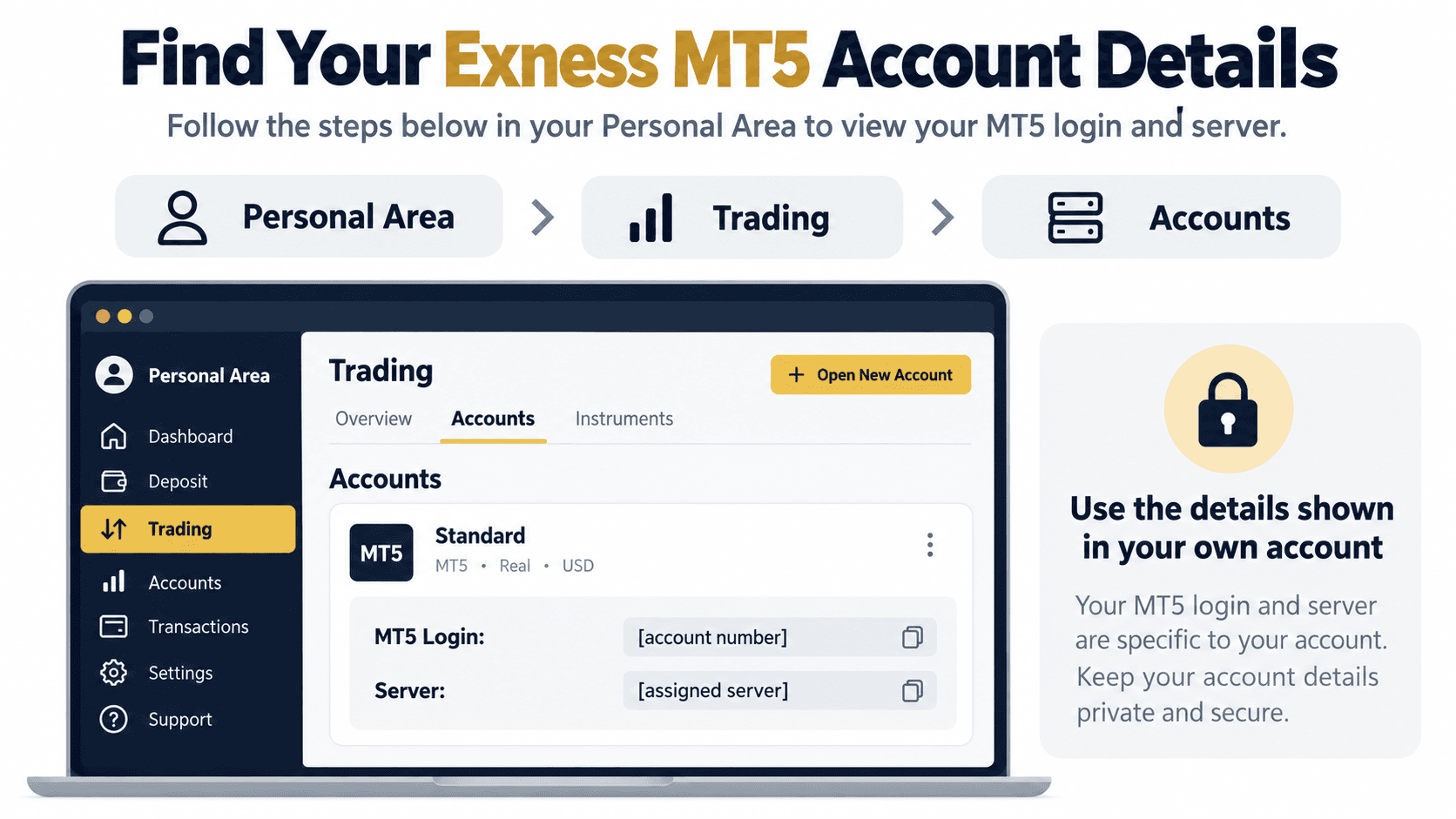
Before opening MetaTrader 5, sign in to your Exness Personal Area and locate the trading account you want to connect.
Check that the account is labeled MT5. An MT4 account cannot be used to log in to MT5.
Your Personal Area can contain multiple trading accounts, so make sure you select the intended account rather than copying details from another one.
| Detail | What to use | Common mistake |
|---|---|---|
| Login | The MT5 trading account number | Entering an email address |
| Password | The password assigned to that trading account | Assuming every account uses the same password |
| Server | The exact server listed for the account | Choosing a similar-looking server |
| Platform | An MT5-compatible trading account | Trying to connect an MT4 account |
| Account status | The intended Real or Demo account | Opening a different account by mistake |
In the Personal Area, open the Trading section and select Accounts. Expand the relevant account card to view its login number and server. Depending on the layout, these details may already appear on the card.
The trading password is the credential for that particular account. It may match your Personal Area password in some default-account setups, but you should not assume this applies to every account.
If you cannot remember it, use the trading-password recovery options provided in the Personal Area.
Do not post your password, verification codes, or complete login details in a public comment or screenshot.

2. Connect Exness to MT5 on Desktop or Mobile
Use a current version of MetaTrader 5 obtained through an official download source.
Installing MT5 and logging in to a trading account are separate steps. The application must still receive the correct account credentials after installation.
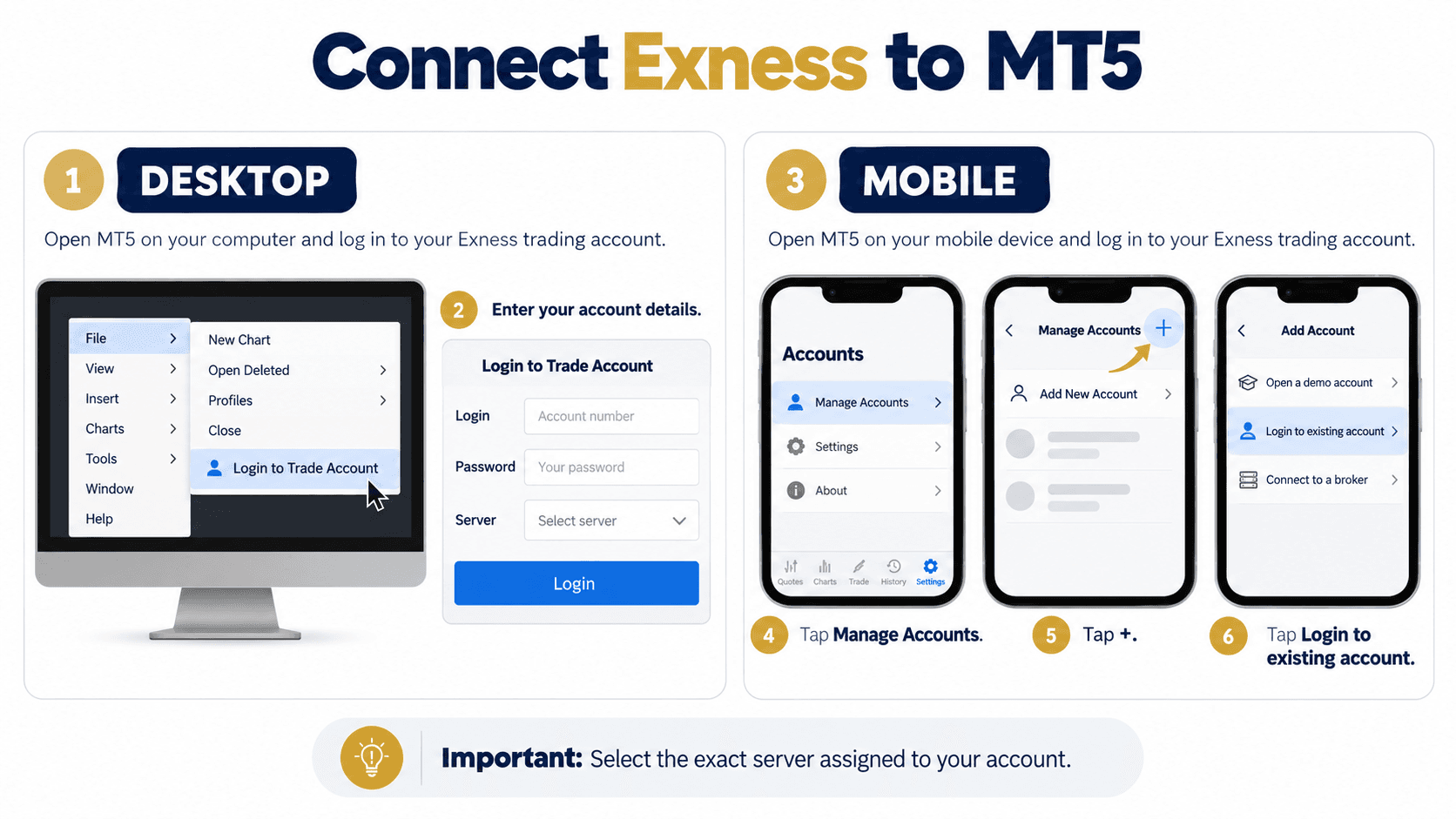
For the desktop version:
- Open MetaTrader 5.
- Select File.
- Choose Login to Trade Account.
- Enter your MT5 account number in the Login field.
- Enter the trading password.
- Select the exact server assigned to the account.
- Click Login.
If the required server is missing, Exness’s desktop guide explains how to search for the broker through File → Open an Account. Locate the appropriate broker entry and assigned server, then use your existing trading account details.
Opening this server-search window does not mean you need to create another account.
On mobile, the route depends on your device:
| Device | Where to start |
|---|---|
| Android | Open the menu, select Manage Accounts, and tap the plus icon |
| iPhone or iPad | Open Settings and select New Account |
| Both | Find the broker, choose the assigned server, and enter the trading account credentials |
Exness’s mobile instructions currently list Exness Technologies Ltd in the broker search. They provide a separate instruction for clients registered with Exness (KE) Limited.
Follow the instructions for your account rather than selecting a broker or server because its name looks familiar.
After signing in, verify the account number and check the Trade tab. During an active trading session, changing quotes can also help confirm that market data is arriving.
A chart already visible on the screen is not sufficient proof of a live connection. Historical chart data can remain available when the terminal is disconnected.
3. Fix Common Exness MT5 Login and Connection Problems
When Exness does not connect to MT5, start with the account details rather than repeatedly submitting the same login attempt.
| Problem | What to check first |
|---|---|
| Invalid account | Account number, assigned server, and MT4/MT5 compatibility |
| Authorization failed | Trading password and the selected account |
| No connection | Internet access, server availability, and terminal connection status |
| Account opens but trading is unavailable | Whether you used a read-only password |
| Expected balance or positions are missing | Whether a different Real or Demo account is active |
For an Invalid account error, compare the login number and server with the details shown in the Personal Area.
A correct account number paired with the wrong server can still fail.
For an Authorization failed message, check the trading password. If recovery is necessary, use the official Personal Area process rather than sharing credentials with someone offering to connect the account for you.
For No connection, confirm that your internet connection works and restart the terminal. Exness also recommends rescanning servers through the connection area of the desktop terminal.
Keep MT5 updated, because unsupported older versions may be unable to connect.
If the account opens but you cannot trade, check whether you signed in using a read-only access password. Read-only access allows account viewing but does not permit trading.
A disabled order button can also have account-specific causes. Logging in successfully does not mean every instrument or trading operation is available.
Before contacting support, record:
- The exact error message.
- The time the problem occurred and your time zone.
- Whether you are using desktop, Android, or iOS.
- The MT5 application version.
- Whether the issue affects a Real or Demo account.
Share screenshots with sensitive information hidden. Never include your password or verification codes.
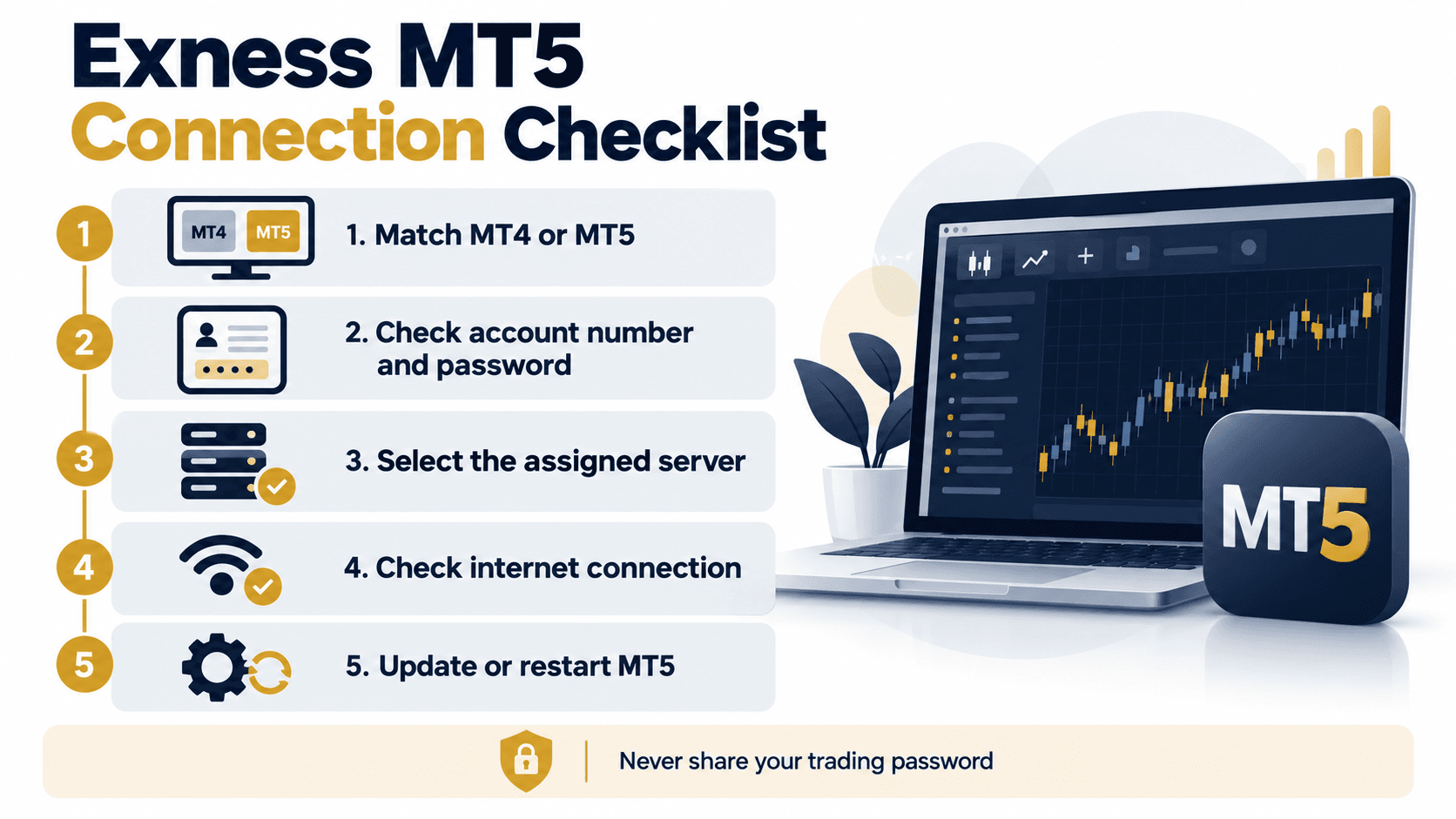
The essential check is whether the account number, trading password, server, and platform all belong to the same account.
---
This article provides platform information for educational purposes. It is not a recommendation to open an account or trade a financial product. Service availability and trading conditions depend on jurisdiction and account eligibility. Leveraged trading involves substantial risk.
Official references, checked October 28, 2026: