
How to Connect Exness to MT5: Login and Server Setup Guide
Learn how to connect an eligible Exness trading account to MT5 on desktop or mobile. Find your MT5 login and server, follow the setup steps, and troubleshoot common connection errors.
How to Find a Currency Pair and Open a Chart in MT5
When you first open MetaTrader 5, the trading screen can feel crowded. You may see prices, symbols, charts, and several panels at once.
Before placing an order, it helps to know how to find a market and open its chart. This guide explains how to locate a symbol in MT5, display it in Market Watch, and open a chart on desktop or mobile.
The symbols available to you depend on your broker, account type, and region. A symbol may have a suffix, such as .m or -pro, so its name may look different from examples in other guides.
1. Find a Symbol in Market Watch
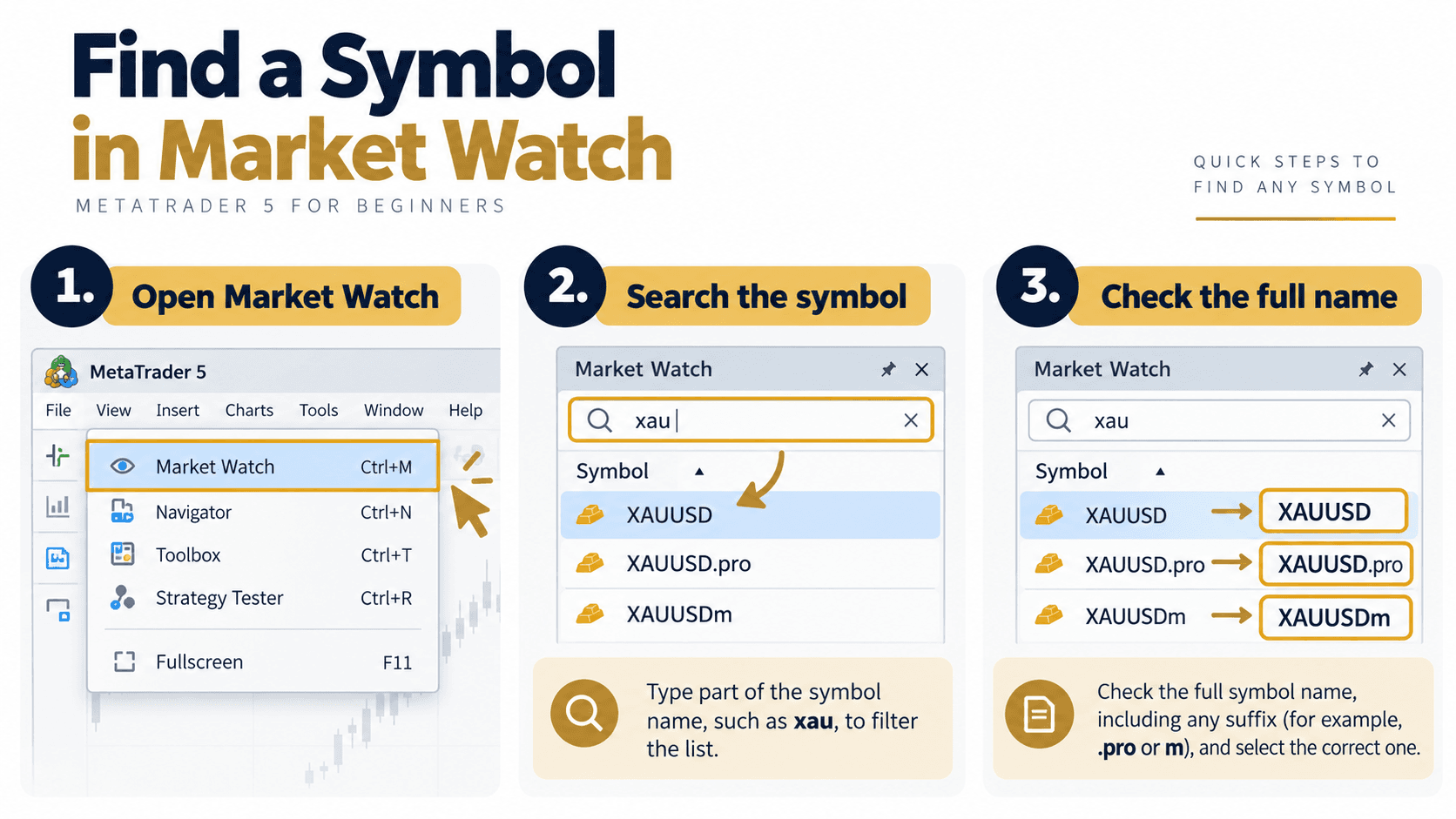
On MT5 desktop, the Market Watch panel lists the symbols available for your account. If you cannot see it, open the View menu and select Market Watch, or press Ctrl+M.
To find a symbol:
- Click inside the Market Watch panel.
- Start typing the symbol, such as
EURUSDorXAUUSD. - Look for the matching instrument in the results.
- Check the full symbol name, including any suffix.
If the symbol is not listed, right-click inside Market Watch and choose Symbols. Search the available groups, select the instrument you need, and choose Show. The exact menu labels can vary slightly by MT5 version and broker setup.
On MT5 mobile, open the Quotes tab and use the add-symbol control to search the available instruments. Select a symbol to add it to your list.
| What you see | What it means |
|---|---|
EURUSD | A broker-provided symbol for the euro and U.S. dollar |
XAUUSD | A broker-provided symbol commonly used for gold priced in U.S. dollars |
A suffix, such as .m | A broker-specific variation of the symbol |
| No search result | The symbol may be unavailable for this account or may use a different name |
Do not assume every broker offers the same instruments or symbol names. If you are unsure which listing to use, check your broker’s instrument specifications.

2. Open and Adjust the Chart
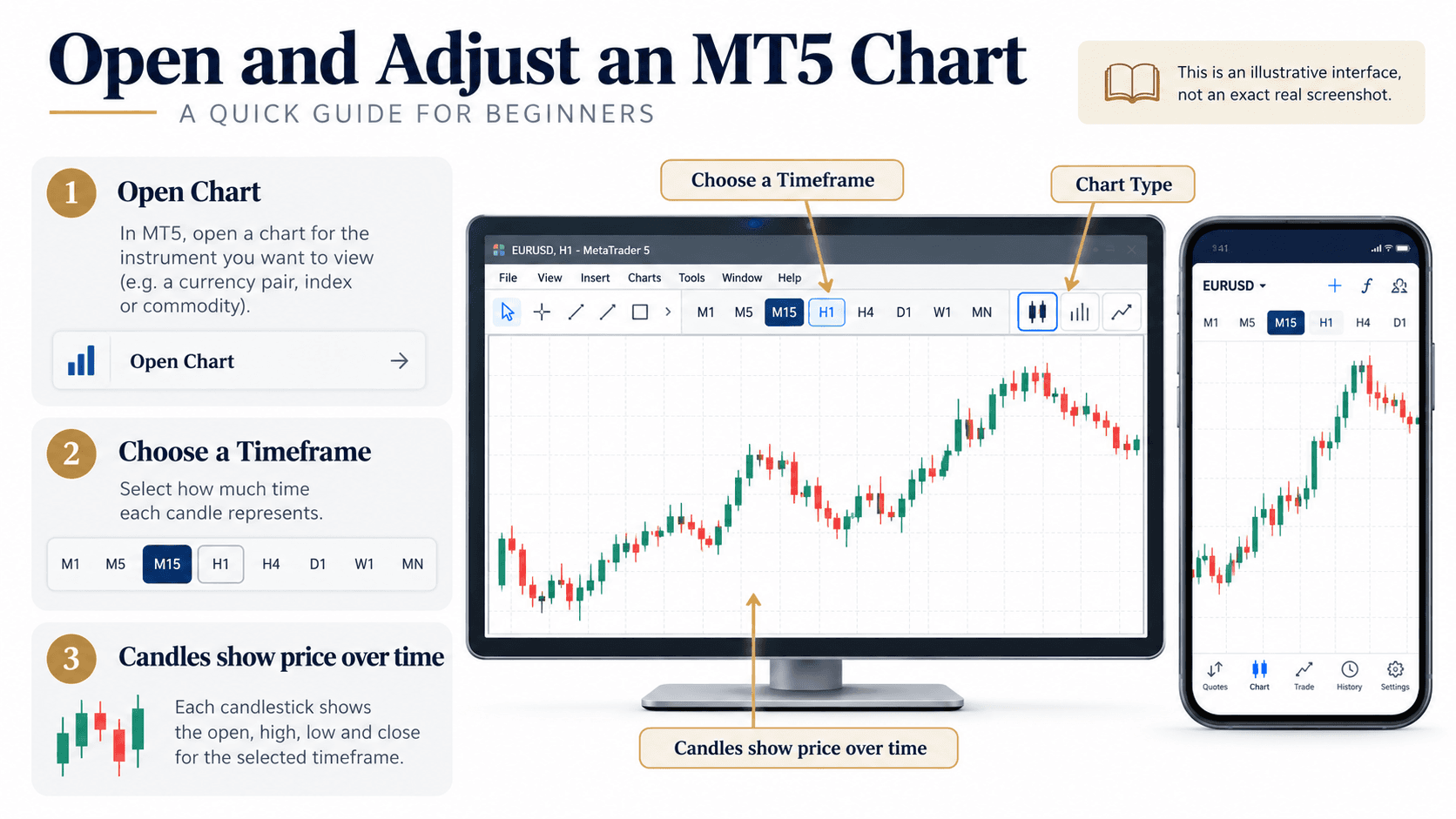
Once you find the symbol, you can open its chart from Market Watch. On desktop, right-click the symbol and select Chart Window. You can also drag the symbol into the chart area.
On mobile, tap the symbol in Quotes and choose the chart option.
After opening the chart, choose a timeframe to change how much time each candle represents. For example, M15 shows 15-minute candles, while H1 shows hourly candles. A shorter timeframe displays more frequent price changes, but it does not make a trade more reliable.
You can adjust the chart display to suit your needs:
- Use candlesticks, bars, or a line chart.
- Zoom in or out to view more or less price history.
- Scroll through the chart to review earlier price movement.
- Add indicators from the chart’s indicator menu if needed.
A chart shows price information for the selected symbol and account feed. Prices can differ between brokers and account types, and they can change over time. A chart view alone does not confirm that an order can be placed or that a market is currently open.
3. Check the Symbol Before Using It
Before you rely on a chart or open an order window, confirm that you have selected the intended instrument.
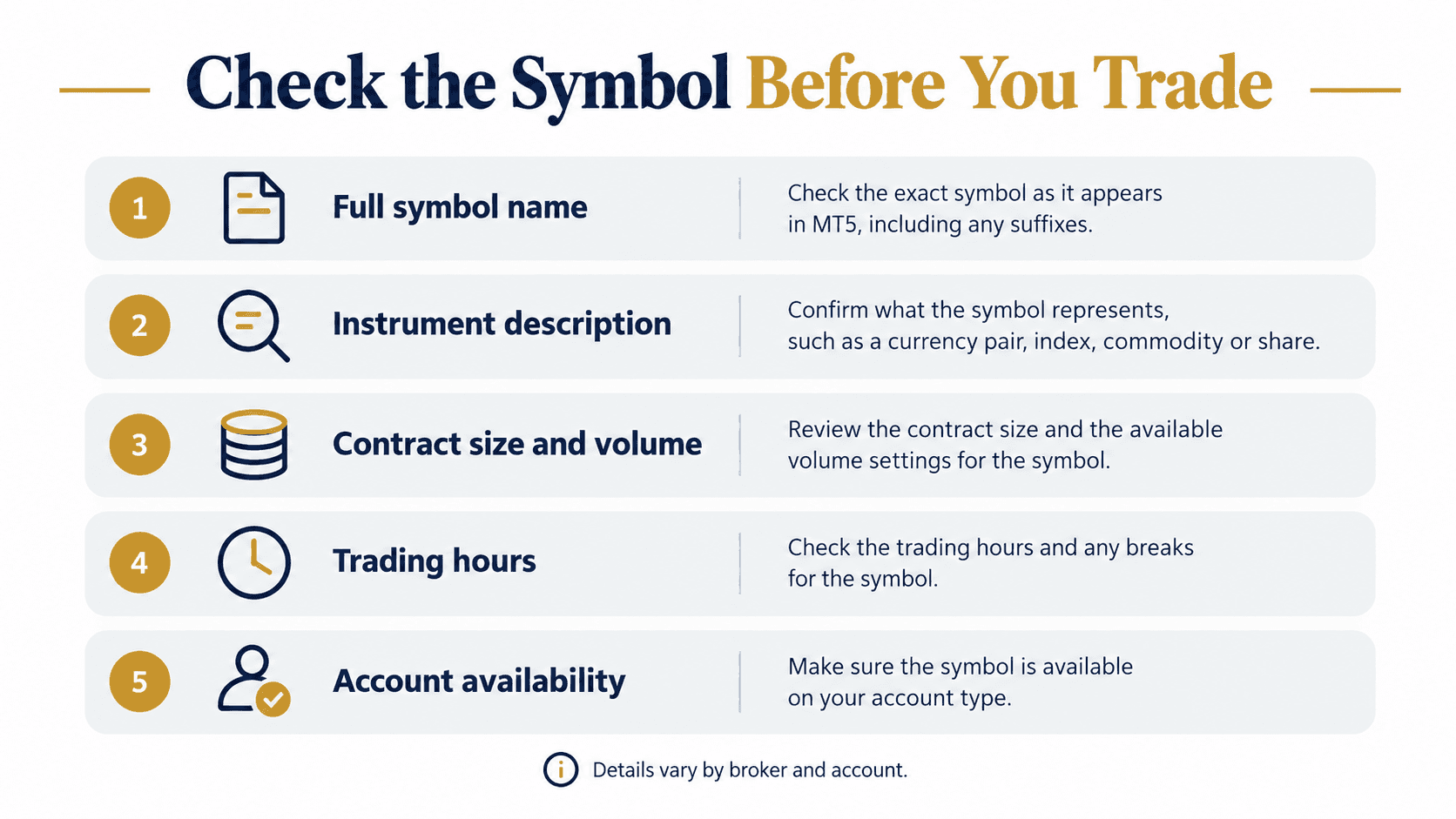
Check these details:
- Full symbol name: Look for suffixes or variations.
- Instrument description: Confirm what the symbol represents.
- Trading conditions: Review contract size, minimum volume, and trading hours with your broker.
- Account availability: Confirm that the instrument is enabled for your account.
- Price movement: Remember that charts may update only when the market is open and quotes are being received.
If the chart is blank or prices appear frozen, check your internet connection and account connection first. Then confirm that the instrument is available and that the market session is active. A blank chart does not necessarily mean the symbol has been removed.
Quick Summary
- Market Watch lists the instruments available in your MT5 account.
- Use the search or Symbols menu to find and display an instrument.
- Open the symbol’s chart from Market Watch or the mobile Quotes screen.
- Check the full symbol name because brokers may add suffixes.
- Review the broker’s contract details before using an instrument.
---
This article is for educational purposes only and is not financial or investment advice. Trading leveraged products involves risk, and losses can exceed expectations. Instrument availability, symbol names, prices, and trading conditions vary by broker, account, and region.
Sources:
- MetaTrader 5 Help — Market Watch: https://www.metatrader5.com/en/terminal/help/trading/market_watch
- MetaTrader 5 Help — Charts: https://www.metatrader5.com/en/terminal/help/charts
- MetaTrader 5 Help — Mobile trading: https://www.metatrader5.com/en/mobile-trading