
How to Create an MT5 Demo Account on Exness
Learn how to create an MT5 demo account on Exness. This guide covers account type selection, virtual balance, leverage, MT5 setup, trading password, login number, and server details.
In this guide, we will explain how to create an MT5 demo account on Exness and connect it to MetaTrader 5. A demo account lets you practice with virtual funds before using real money. The main steps are simple:
- Choose an account type
- Set the virtual balance, leverage, and MT5 platform
- Check the new demo account
- Confirm the MT5 login and server information
1. Choose a Trading Account Type
After logging in to your Exness account, open the Open Account menu and choose the type of trading account you want to use. Depending on availability, you may see account types such as:
- Standard
- Standard Cent
- Pro
- Raw Spread
- Zero
For demo practice, choose the account type you want to learn with and continue to the next step. Account conditions such as spreads, commissions, and minimum deposit requirements may differ by account type.
Advertisement · IC
2. Select Demo and MT5
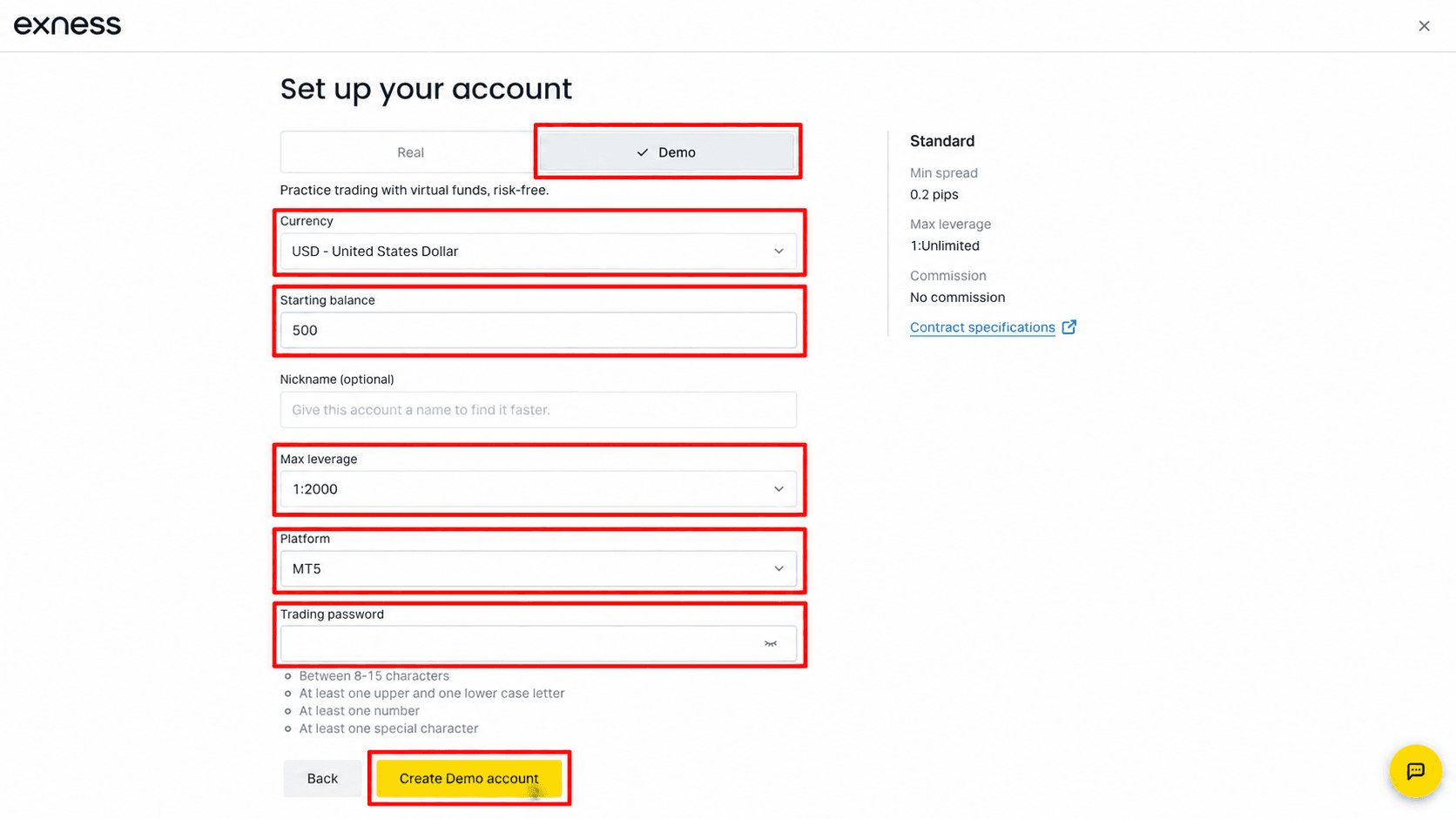
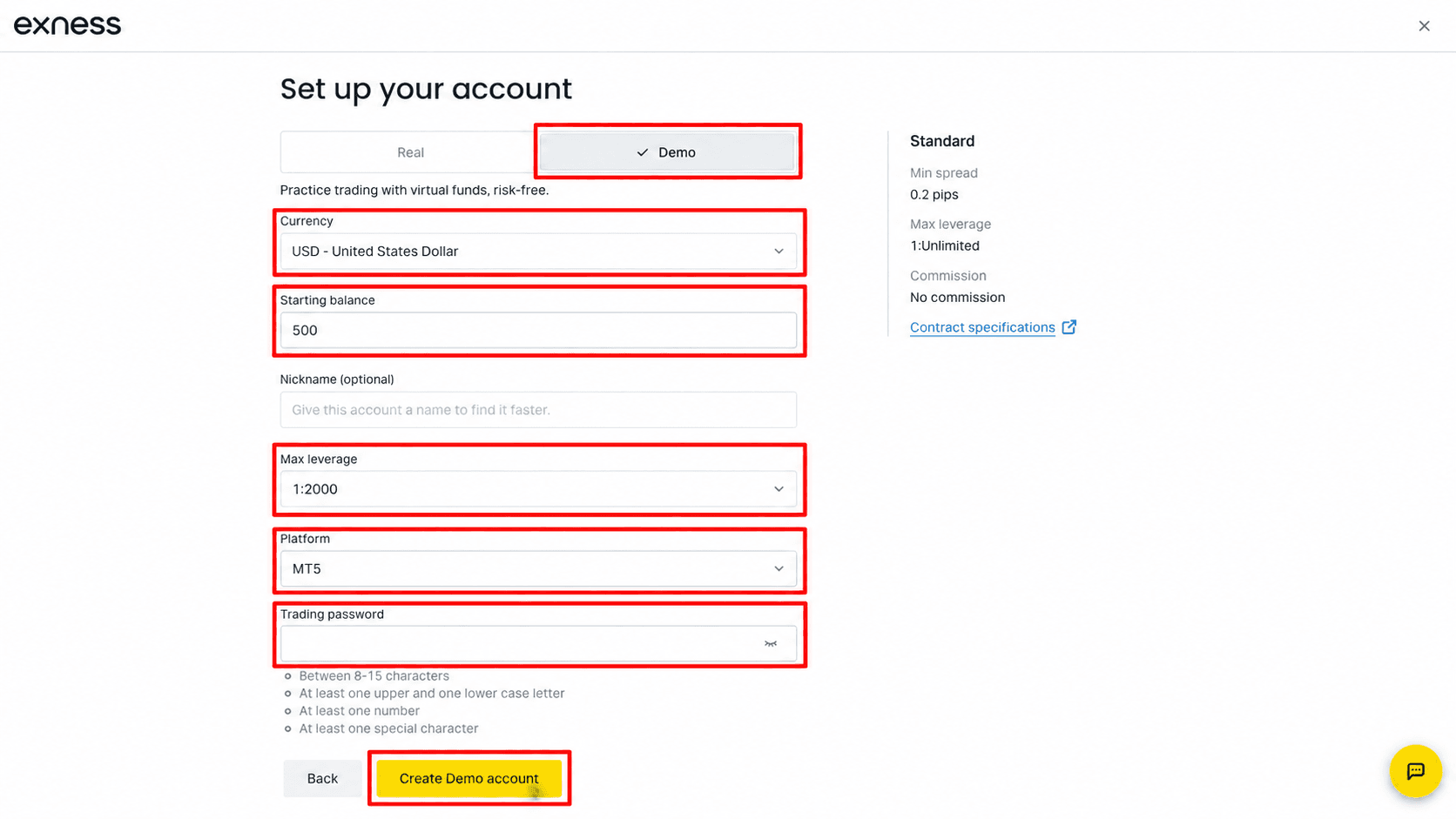
On the account setup screen, select Demo instead of Real. Then check the following settings:
- Currency — account base currency
- Starting balance — virtual balance for practice
- Max leverage — maximum leverage setting
- Platform — select MT5
- Trading password — password for the trading account
For example, you can set the starting balance to 10,000 USD and select MT5 as the platform. After checking the settings, click Create Demo account. Available leverage and account settings may vary depending on your region, account type, and Exness rules.
3. Check Your New Demo Account
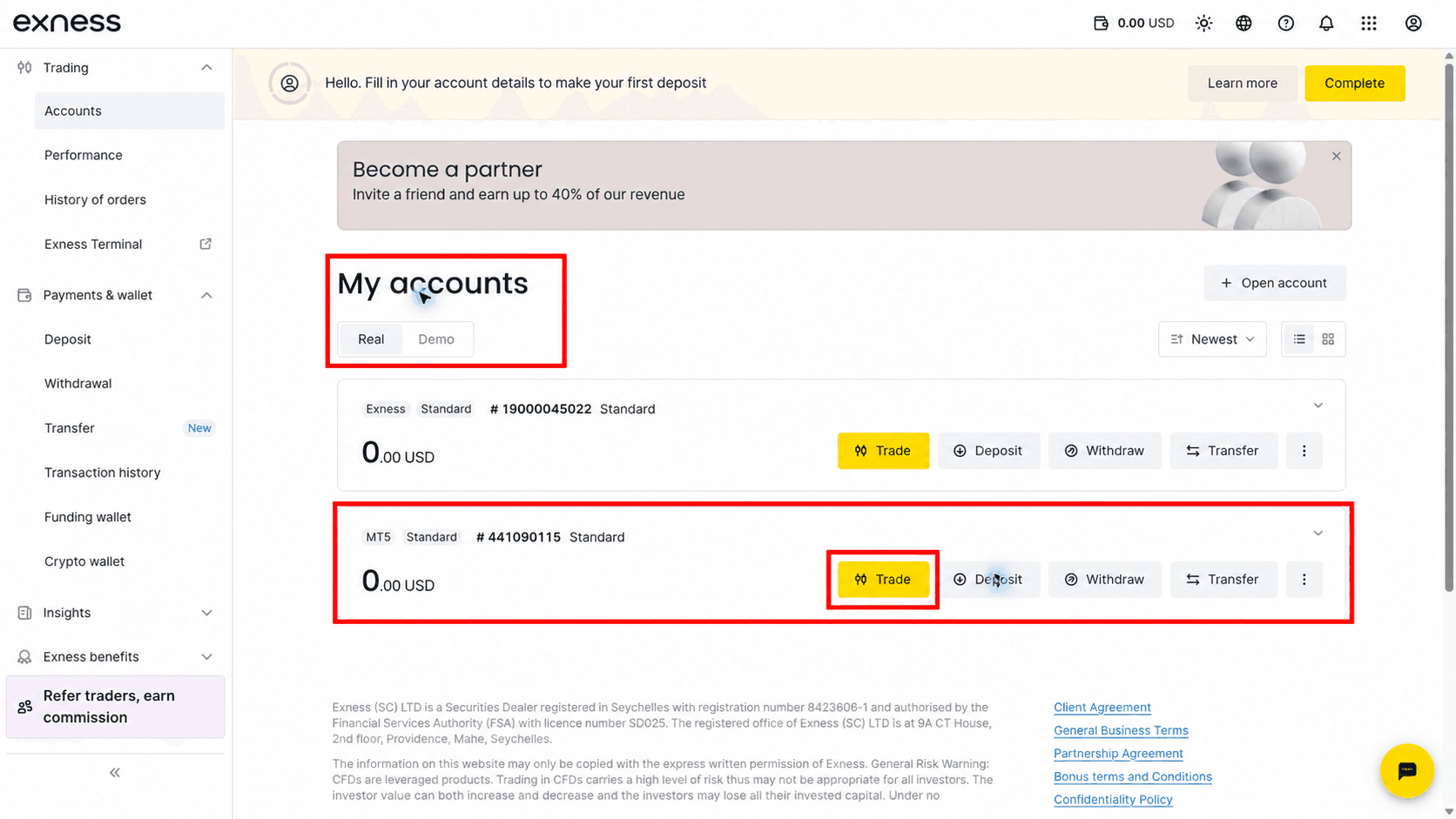
After the account is created, go to My Accounts. Select the Demo tab to view your demo trading accounts. Check that:
- The account uses MT5
- The account type is correct
- The virtual balance matches your selected amount
When you are ready, click the Trade button for that account.
4. Check the MT5 Login and Server Information
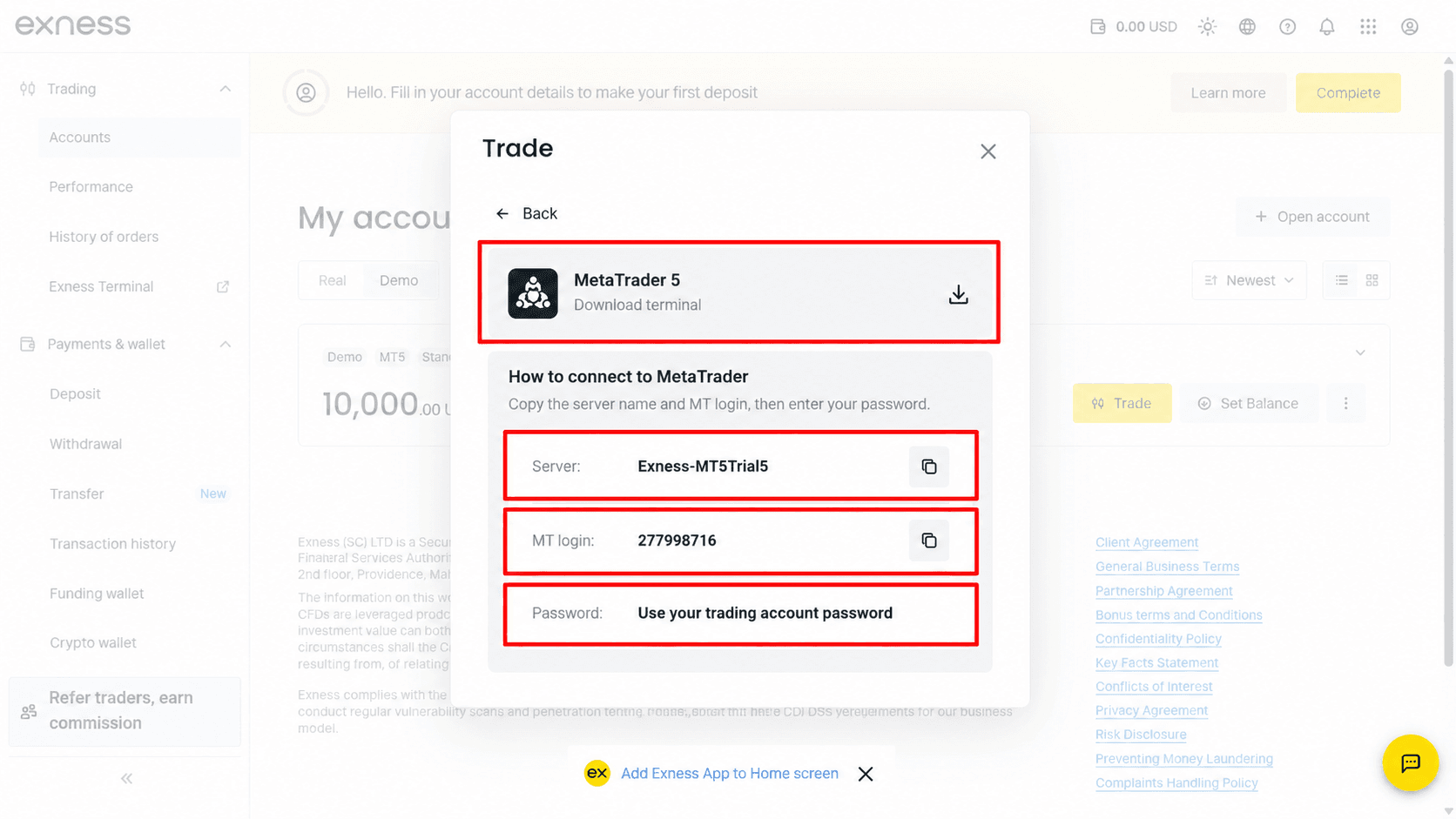
The Trade screen shows the information needed to connect the account to MetaTrader 5. The three important items are:
- Server — the server name used for the account
- MT Login — your MT5 account number
- Password — the trading password you created earlier
These details must be entered correctly when logging in to MT5. If you choose the wrong server, the account may not connect even when the login number and password are correct.
5. Review the Account Settings
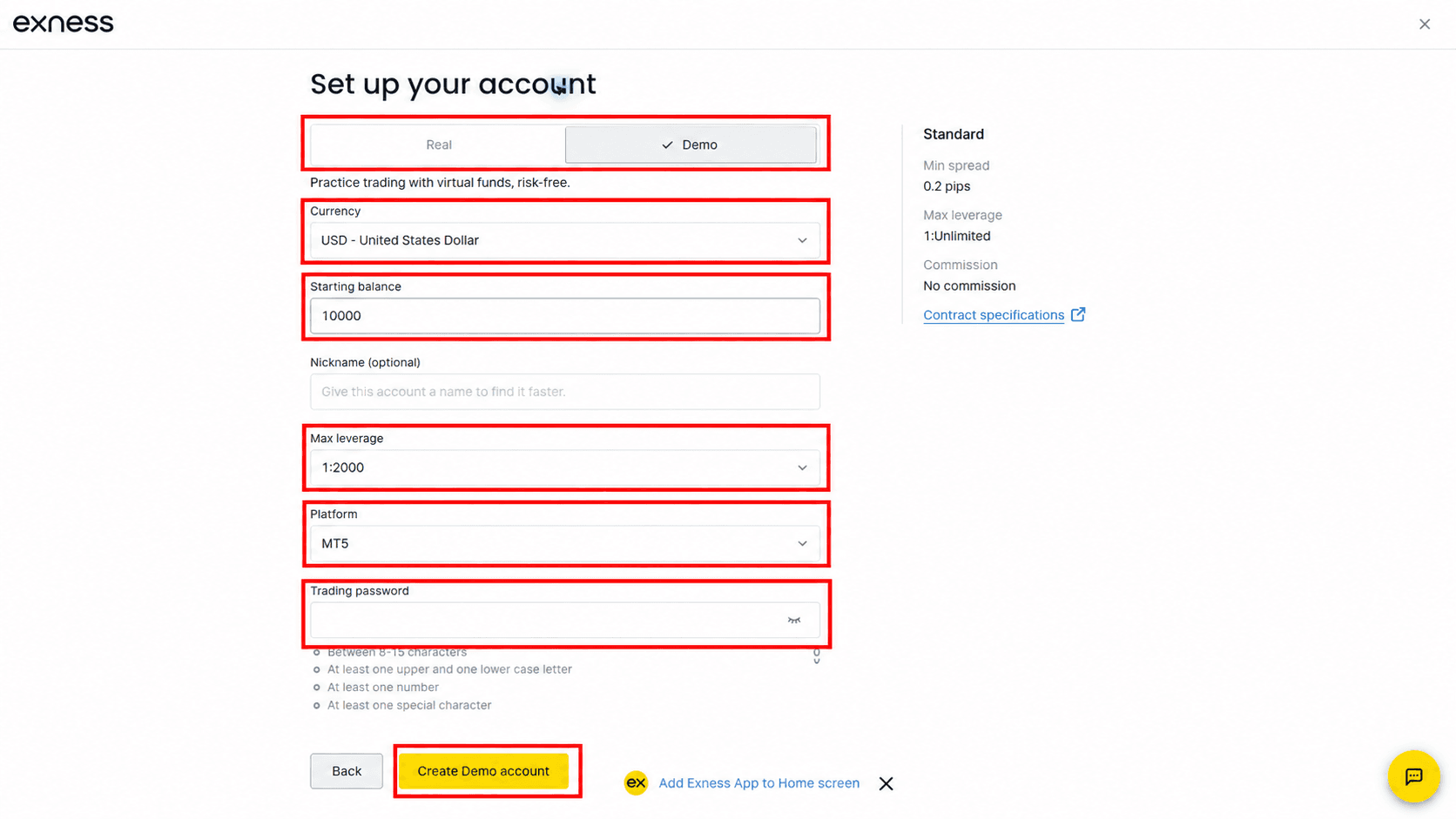
Before logging in to MT5, check the account settings one more time. Confirm the following:
- Demo account
- Account currency
- Starting balance
- Maximum leverage
- MT5 platform
- Trading password
For practice, it can be useful to choose a virtual balance and trading conditions similar to what you may actually use later instead of selecting unrealistically large amounts. Key Takeaways You can create an Exness MT5 demo account in this order:
- Choose a trading account type.
- Select Demo.
- Set the currency and virtual balance.
- Choose the leverage and MT5 platform.
- Create a trading password.
- Click Create Demo account.
- Check the account in My Accounts.
- Confirm the MT Login and server information.
One-Line Summary Create an Exness demo account → choose MT5 → set your virtual balance → check the MT Login and server → connect to MT5. Next: How to Log In to an Exness MT5 Demo Account Once your demo account has been created, the next step is connecting it to MetaTrader 5. In the next guide, we will explain how to use your MT Login, trading password, and server name to log in to MT5. Educational Purpose and Risk Disclosure This article is provided for educational purposes and explains how to use Exness and MetaTrader 5. It is not a recommendation to use a particular broker or trade any financial instrument. Account screens, available settings, leverage, and trading conditions may vary depending on the region, account type, and current broker policies. Demo trading results do not guarantee live trading performance. Leveraged products involve significant risk of loss when real funds are used.