
How to Place Your First Order on an MT5 Demo Account
Learn how to place your first order on an MT5 demo account. This beginner guide explains symbol selection, trade volume, Buy and Sell orders, and how to check an open position.
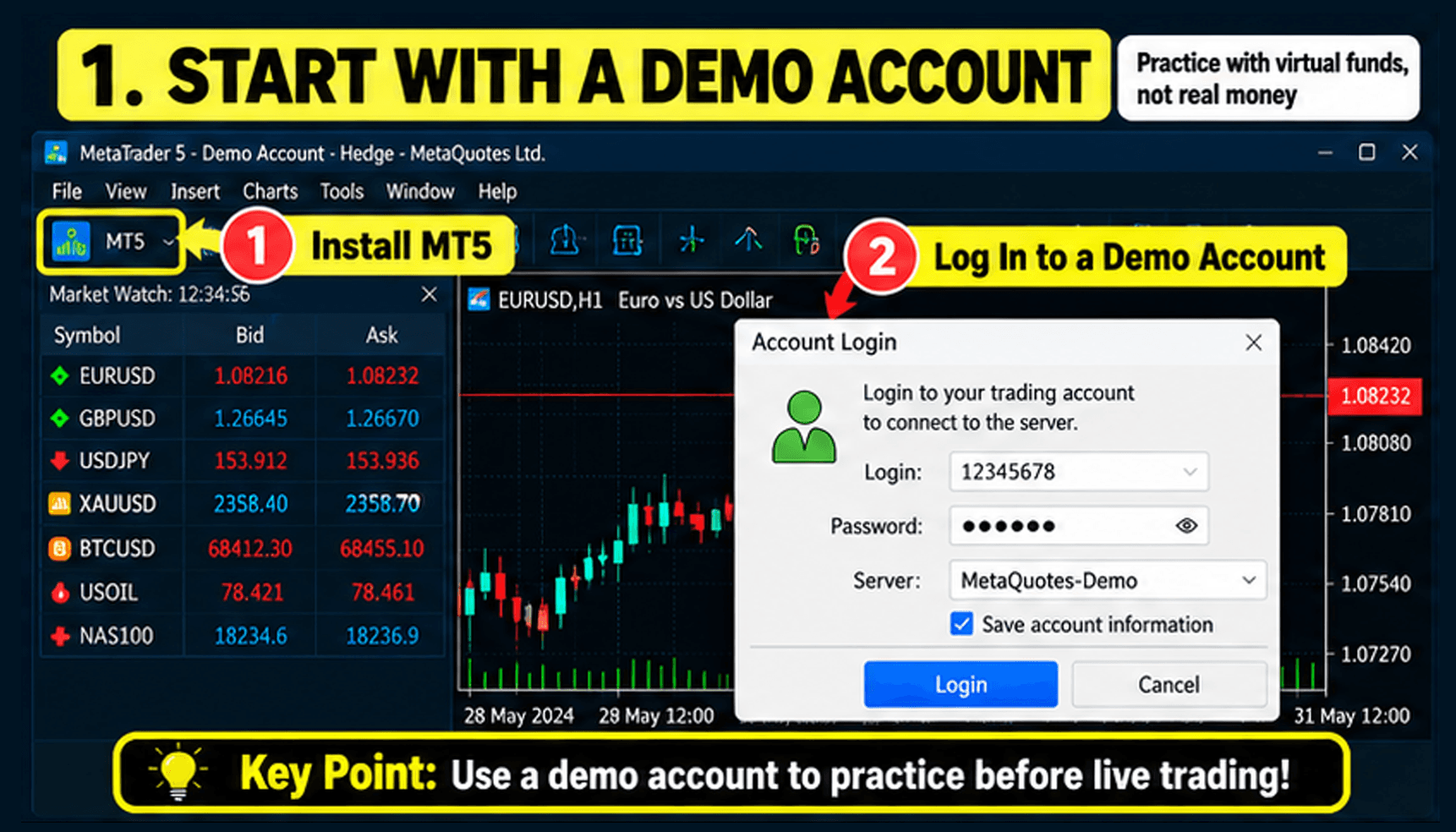
How to Place Your First Order on an MT5 Demo Account In the previous article, we learned how to create an MT5 demo account and start practicing with virtual funds. This time, we will learn how to place your first order on a demo account without using real money. The three key points are simple:
- Choose the symbol you want to trade
- Check the trade volume and Buy/Sell buttons
- Review your open position after placing the order
- Choose a Trading Symbol
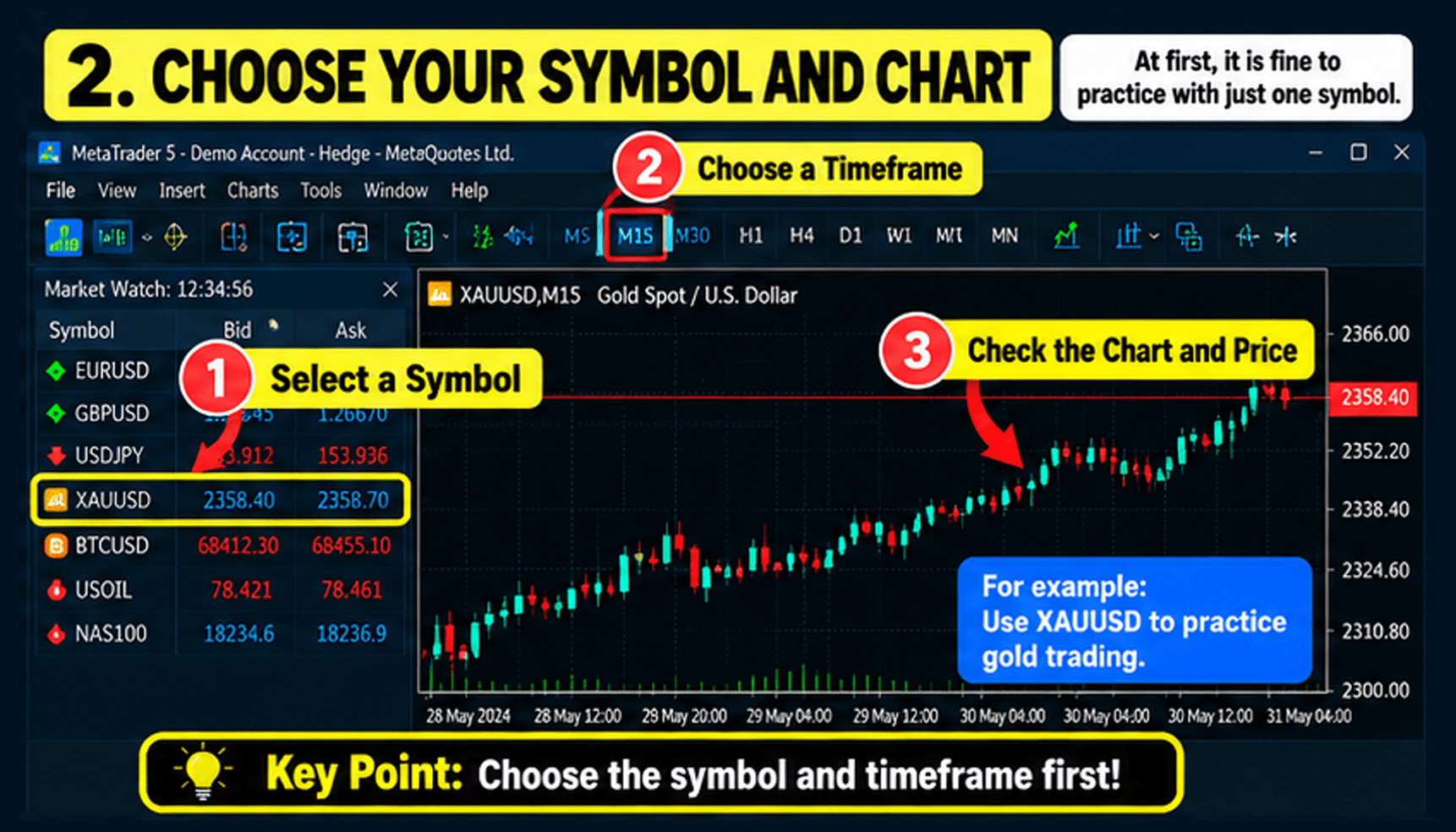
First, choose the symbol you want to trade from Market Watch on the left side of MT5. For example, if you want to practice gold trading, select XAUUSD. After selecting the symbol, open the chart and check how the current price is moving. When you are just starting, it is better to practice with one symbol at a time instead of watching many markets at once.
- Open the New Order Window
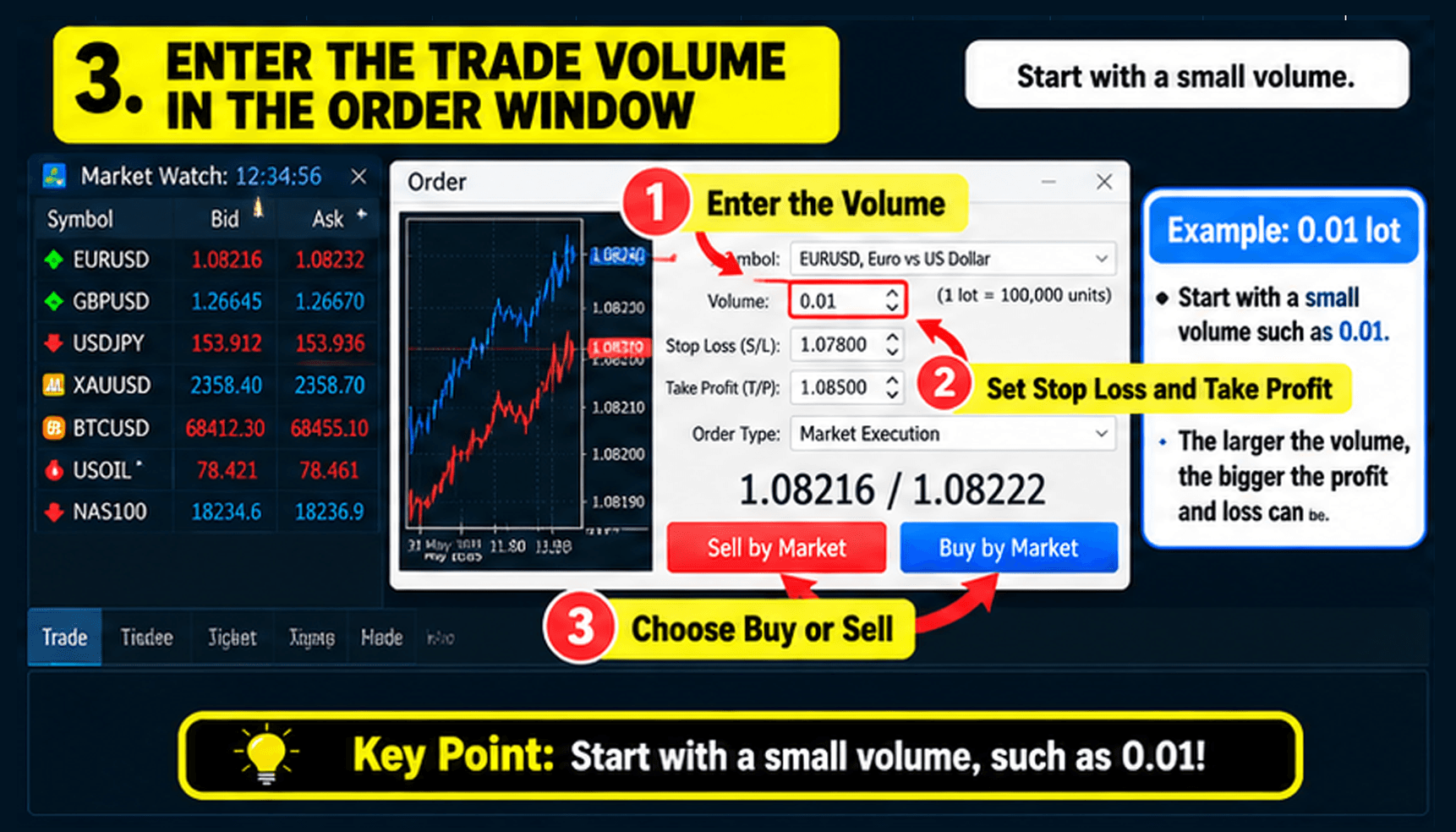
You can open the order window by right-clicking on the chart or clicking New Order at the top of MT5. Inside the order window, you can check:
- Symbol
- Trade volume
- Stop Loss (S/L)
- Take Profit (T/P)
- Buy / Sell buttons
At first, focus on learning where each setting is located instead of entering numbers quickly.
- Check the Trade Volume First
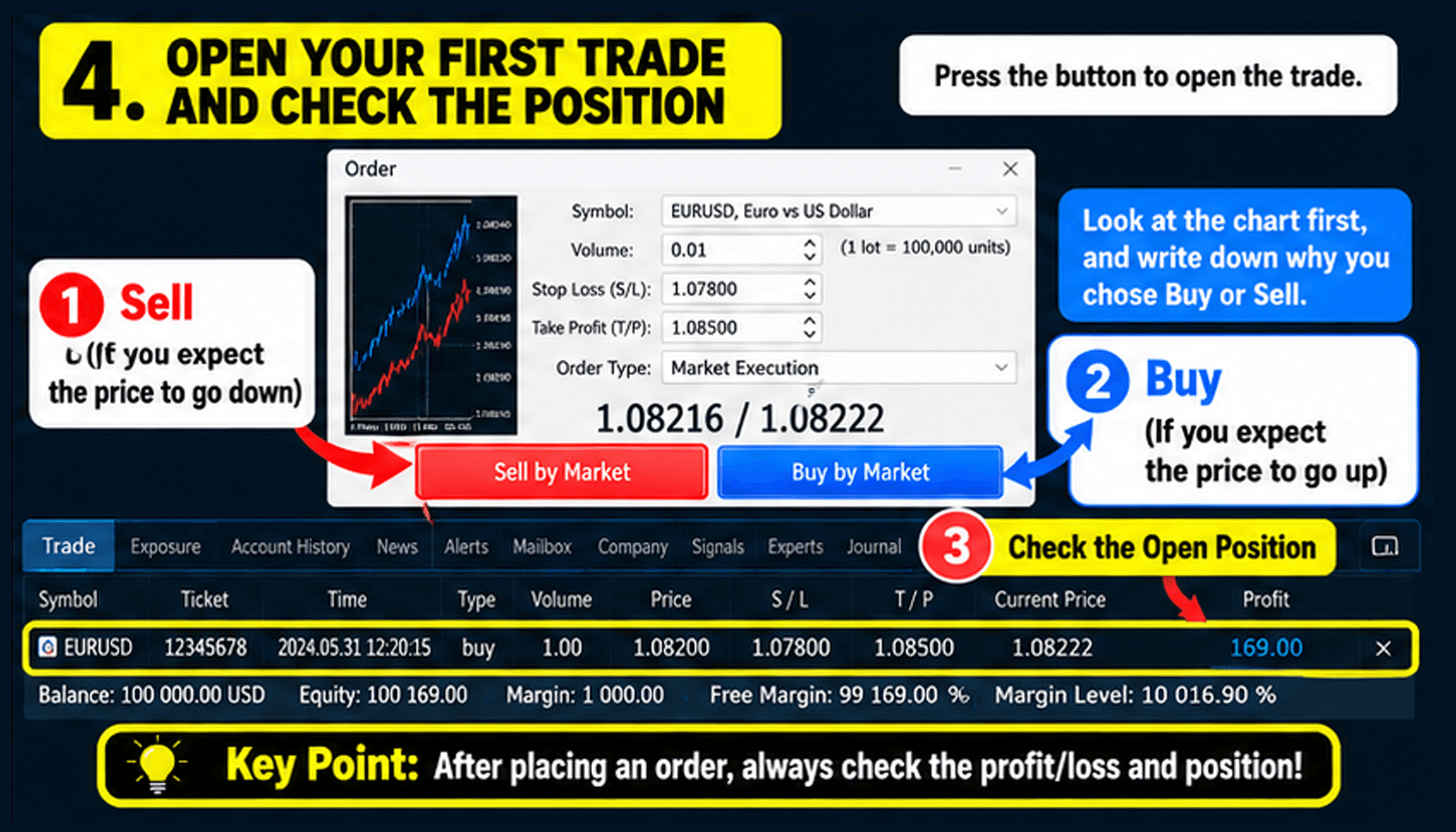
In MT5, trade size is usually shown in Lots. When practicing for the first time, it is better to start with a small volume. For example, using a small size such as 0.01 can make it easier to see how profit and loss change as the price moves. The larger the trade volume, the larger the profit or loss movement can be.
- Choose Buy or Sell
If you are practicing a scenario where you expect the price to rise, choose Buy. If you expect the price to fall, choose Sell. Once you press the button, the order may be executed and a position will open. Even on a demo account, try not to choose a direction randomly. Look at the chart first and write down one short reason for choosing Buy or Sell.
- Check Your Open Position
After placing the order, check the Trade tab at the bottom of MT5. You can usually see information such as:
- Trading symbol
- Buy / Sell direction
- Trade volume
- Entry price
- Current price
- Current profit or loss
As the market price moves, your unrealized profit or loss will also change. At the beginning, the goal is not to make a profit. It is more important to become comfortable with placing an order, checking the position, and closing it yourself. Key Takeaways You can practice your first MT5 demo order in this order:
- Choose a symbol.
- Open the New Order window.
- Check the trade volume.
- Choose Buy or Sell.
- Check your position and profit/loss in the Trade tab.
One-Line Summary Start with a small trade size and repeat the process: place an order → check the position → close the trade. Next: How to Set Stop Loss and Take Profit in MT5 Demo Trading Once you know how to place your first order, the next step is learning how to define your risk and target before trading. In the next article, we will explain how to set Stop Loss (S/L) and Take Profit (T/P) and how to close an open position. Educational Purpose and Risk Disclosure This article is for educational purposes and explains how to use MT5. It is not a recommendation to buy or sell any financial instrument. Demo trading conditions may differ from live trading, and demo results do not guarantee future performance. Leveraged products can involve significant losses when real funds are used, so make sure you understand the risks before trading.